This article is for users wanting to create a leave type if the employee record is missing a certain leave type or want to add in a special leave for an employee.
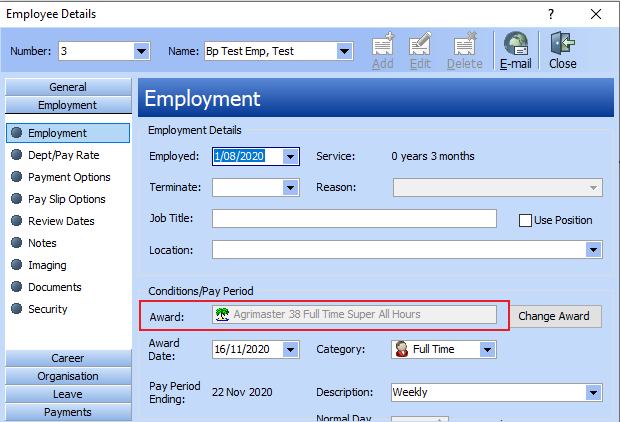
Locate The Award Linked To The Employee
- Navigate to Employee.

- Click on Employment and Employment again.
- Identify the Award linked to the employee.
Edit The Award
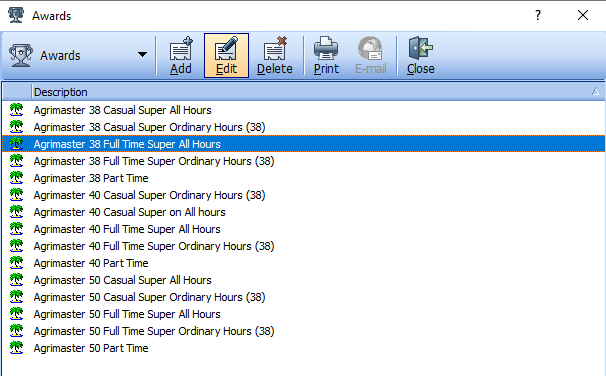
- Navigate to Awards.

- Click on the relevant Award.
- Click Edit.
Add Leave Type
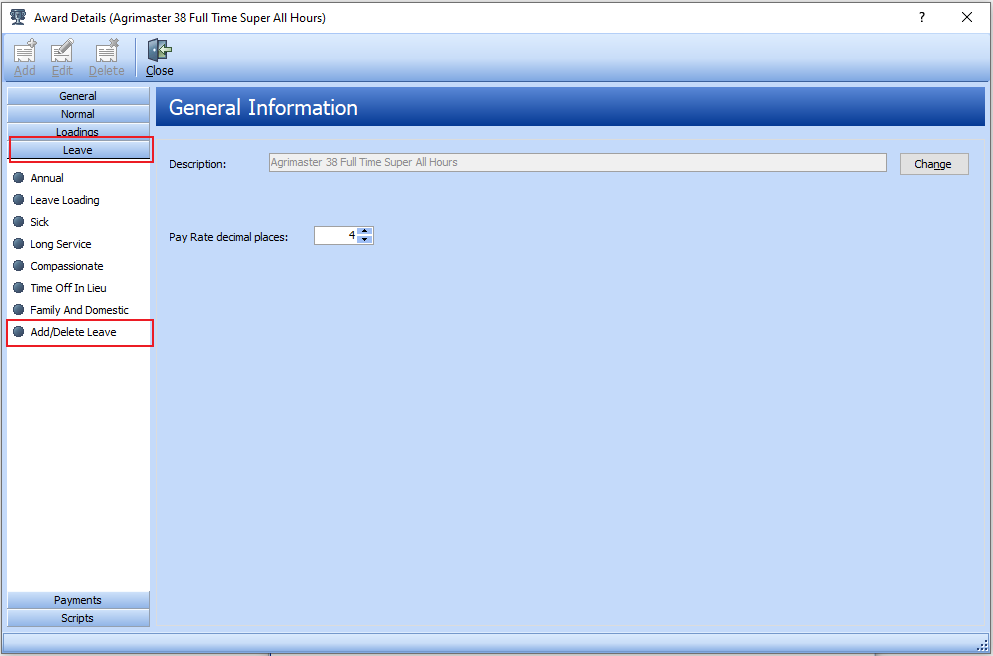
- Click Leave.
- Click Add/Delete Leave.
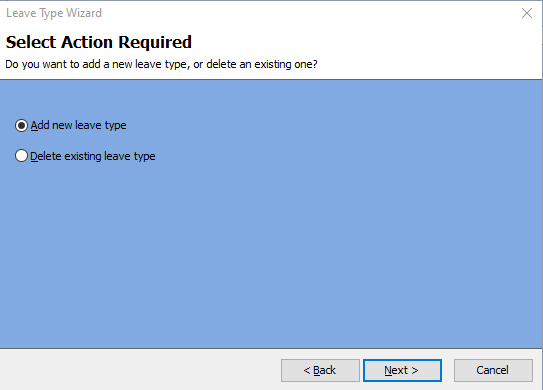
- Leave Type Wizard will appear.
- Click Next.
- Click Add new leave type.
- Click Next.
- At the Leave Type Wizard: Enter Details of the New Leave Type screen, fill in:
- Leave Type: Name of leave.
- Description: Generic description for leave.
- Short Description: Fill if required.
- GL Code: Not Applicable.
- Click Show Leave Total.
- Click Show Leave Entitlement.
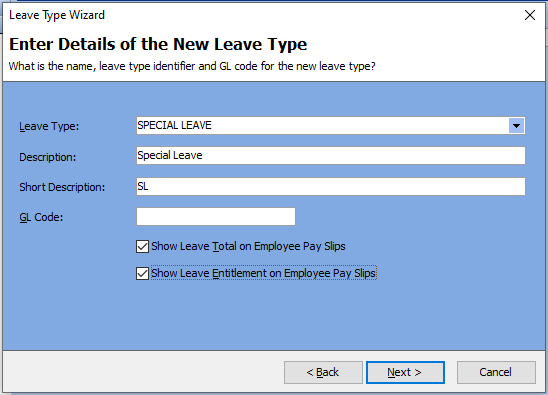
- Click Next and Next again.
- Click Finish.
Comments
0 comments
Article is closed for comments.